> ## Documentation Index
> Fetch the complete documentation index at: https://docs.traversal.com/llms.txt
> Use this file to discover all available pages before exploring further.
# AppDynamics
> Connect AppDynamics to pull application metrics and health signals during investigations.
Connecting AppDynamics lets Traversal pull application metrics, health signals, and alert context during investigations so it can correlate symptoms to likely causes with supporting evidence.
## What Traversal reads
* **Metrics** — application performance metrics across tiers, nodes, and backends
* **Events** — application events and health rule violations
* **Request snapshots** — transaction snapshots for slow or erroring requests
## Setup
Enter the API client's **Client ID** and **Client Secret**. Traversal uses them to request and refresh OAuth access tokens automatically. Do not generate a temporary access token in the AppDynamics UI for this integration.
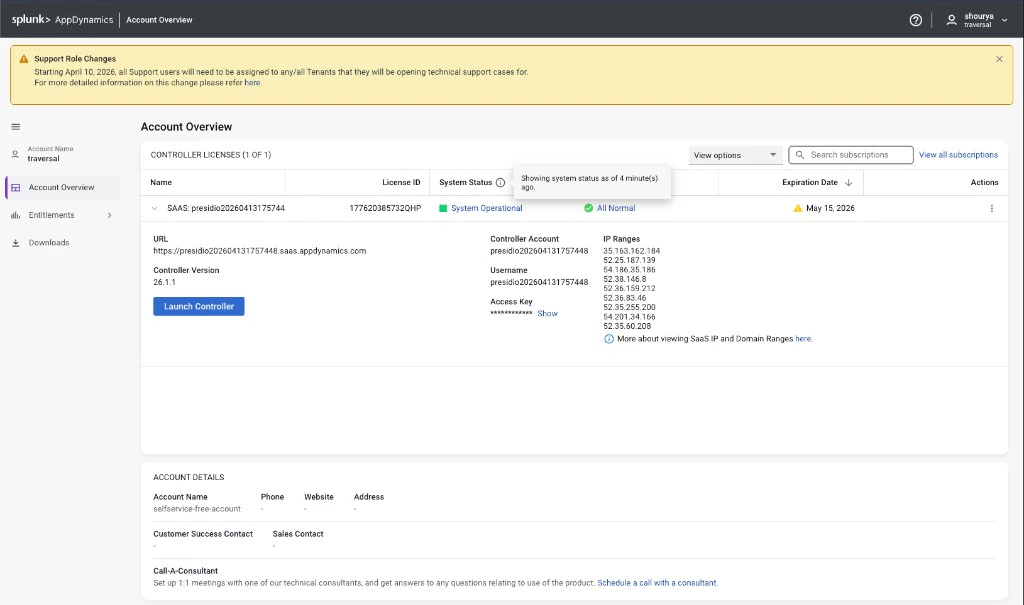
1. Sign in to the Controller UI as an Account Owner, or as an admin who can manage API clients. If you are
in the Account Overview section click on Launch Controller.
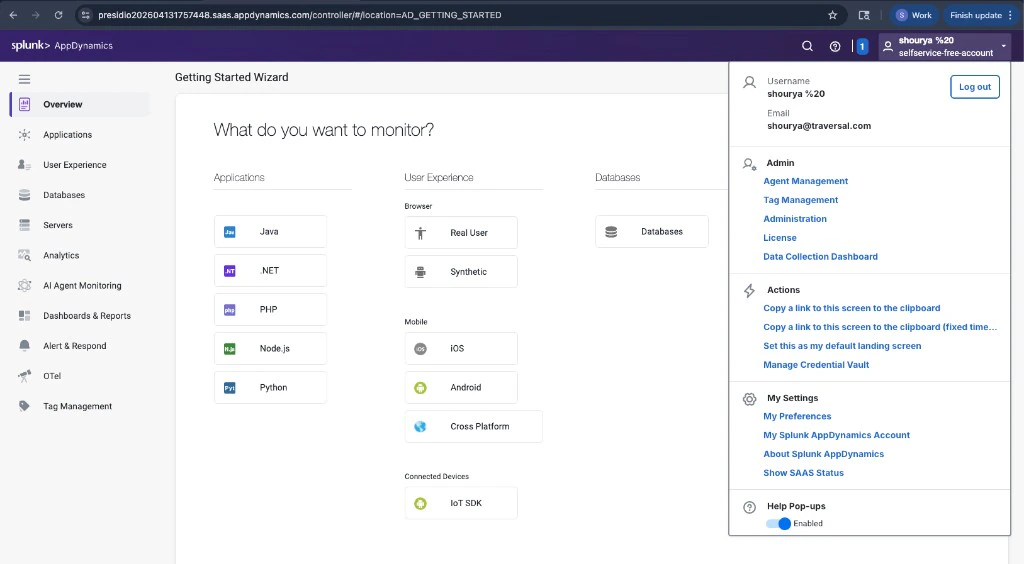
 2. Click your user name, then go to **Administration > API Clients**.
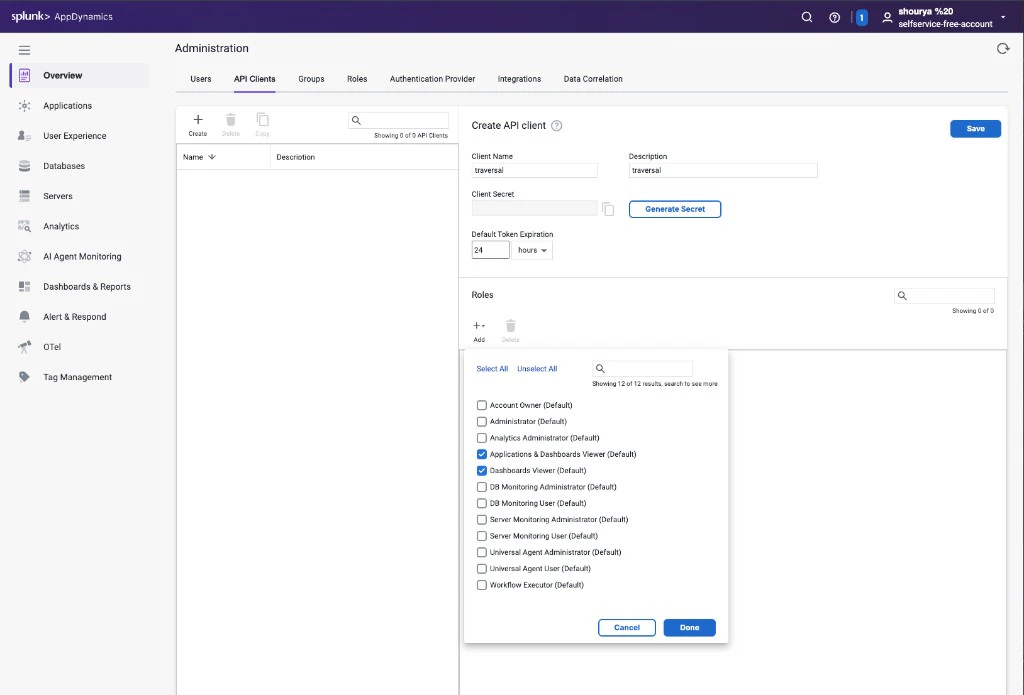
 3. Click **+ Create**.
4. Enter a **Client Name** and description for Traversal.
5. Click **Generate Secret**, then copy the secret immediately. AppDynamics shows it only once.
6. Under **Roles**, click **Add** and select **Applications & Dashboards Viewer (Default)** and **Dashboards Viewer (Default)**.
7. Click **Save**.
3. Click **+ Create**.
4. Enter a **Client Name** and description for Traversal.
5. Click **Generate Secret**, then copy the secret immediately. AppDynamics shows it only once.
6. Under **Roles**, click **Add** and select **Applications & Dashboards Viewer (Default)** and **Dashboards Viewer (Default)**.
7. Click **Save**.
 Click your user name and go to **My Splunk AppDynamics Account**, or open **Administration > Account Overview**. You need two values from this page:
* **Controller URL** — listed under your license details (e.g. `https://example.saas.appdynamics.com`)
* **Controller Account** — the account name shown on the same page
* **Client ID:** `@` — for example, if your Client Name is `traversal` and the account name from the previous step is `mycompany`, enter `traversal@mycompany`.
* **Client Secret:** The secret you copied when you created the API client.
* **Base URL:** The controller URL from the previous step (e.g. `https://example.saas.appdynamics.com`).
Do not enter the full token URL. Traversal appends the AppDynamics `/controller/...` API paths itself.
Go to **Company Knowledge > Integrations**, select AppDynamics, and enter the **Client ID**, **Client Secret**, and **Base URL** you gathered above.
Click **Save**.
If the integration returns empty or unauthorized responses, confirm that the API client has the required roles and that you entered the `client_id` in the `@` format.
## More information
* [Configure and troubleshoot AppDynamics API client](https://www.cisco.com/c/en/us/support/docs/security/endpoint-security-analytics-built-on-splunk/223150-configure-and-troubleshoot-appdynamics.html#toc-hId-1235019416)
* [Splunk AppDynamics API clients](https://help.splunk.com/en/appdynamics-saas/extend-splunk-appdynamics/25.7.0/extend-splunk-appdynamics/splunk-appdynamics-apis/api-clients)
Click your user name and go to **My Splunk AppDynamics Account**, or open **Administration > Account Overview**. You need two values from this page:
* **Controller URL** — listed under your license details (e.g. `https://example.saas.appdynamics.com`)
* **Controller Account** — the account name shown on the same page
* **Client ID:** `@` — for example, if your Client Name is `traversal` and the account name from the previous step is `mycompany`, enter `traversal@mycompany`.
* **Client Secret:** The secret you copied when you created the API client.
* **Base URL:** The controller URL from the previous step (e.g. `https://example.saas.appdynamics.com`).
Do not enter the full token URL. Traversal appends the AppDynamics `/controller/...` API paths itself.
Go to **Company Knowledge > Integrations**, select AppDynamics, and enter the **Client ID**, **Client Secret**, and **Base URL** you gathered above.
Click **Save**.
If the integration returns empty or unauthorized responses, confirm that the API client has the required roles and that you entered the `client_id` in the `@` format.
## More information
* [Configure and troubleshoot AppDynamics API client](https://www.cisco.com/c/en/us/support/docs/security/endpoint-security-analytics-built-on-splunk/223150-configure-and-troubleshoot-appdynamics.html#toc-hId-1235019416)
* [Splunk AppDynamics API clients](https://help.splunk.com/en/appdynamics-saas/extend-splunk-appdynamics/25.7.0/extend-splunk-appdynamics/splunk-appdynamics-apis/api-clients)