> ## Documentation Index
> Fetch the complete documentation index at: https://docs.traversal.com/llms.txt
> Use this file to discover all available pages before exploring further.
# Slack
> Install the Traversal Slack app in your workspace.
Bring Traversal into your team's Slack workspace so engineers can start investigations and receive reports without leaving Slack.
## Install the Traversal Slack app
### SaaS installation
Install Traversal for Slack directly from the Integrations page in Traversal. A Slack workspace administrator for your company must be the one to complete this install.
In Traversal, go to **Company Knowledge → Integrations**, select **Slack**, and click **Add to Slack**. You'll be redirected to Slack to authorize the app.
Review the requested permissions and approve the install.
Slack returns you to the Integrations page. Confirm the Slack tile passes its health check.
You must be signed into Traversal and start the install from the Slack tile so the app is provisioned for the right organization. Installing from the Slack Marketplace directly does not link the app to your organization, and you will need to reach out to an employee of Traversal to correctly provision you.
### Dedicated deployment installation (Single-tenant SaaS & BYOC)
For [single-tenant SaaS](/architecture/single-tenant-saas) or [BYOC](/architecture/byoc) customers, Traversal creates a dedicated Slack app for your organization.
Contact the Traversal team to receive a custom Slack app installation URL for your organization.
A Slack workspace administrator opens the provided link and installs the Traversal app to your workspace.
Reach out to the Traversal team to provision your app and start using it.
## Verify it works
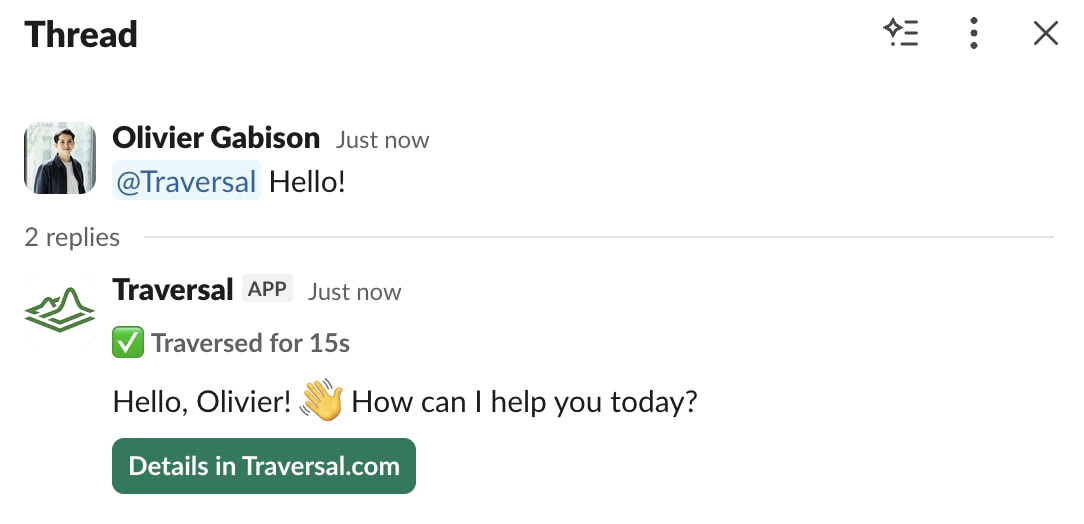
Once your app is provisioned, tag `@Traversal` in any channel it's been added to and say hello.
 ## Uninstall and data deletion
To remove the app from your workspace, go to **Slack → Settings & administration → Manage apps → Traversal → Remove**.
For data export or deletion, email [support@traversal.com](mailto:support@traversal.com) with your workspace ID.
## FAQ
This likely means your Slack app isn't provisioned correctly. Reach out to a Traversal team member to verify your app is properly set up.
Learn how to start investigations, configure triggers, and ask follow-up questions in Slack.
## Uninstall and data deletion
To remove the app from your workspace, go to **Slack → Settings & administration → Manage apps → Traversal → Remove**.
For data export or deletion, email [support@traversal.com](mailto:support@traversal.com) with your workspace ID.
## FAQ
This likely means your Slack app isn't provisioned correctly. Reach out to a Traversal team member to verify your app is properly set up.
Learn how to start investigations, configure triggers, and ask follow-up questions in Slack.