
Deploy Workers
Three ways to get a Worker running.Scan your workspace
Workspace scan deploys an initial fleet in one pass, and is available to org admins. Traversal reviews the channels it can already see, detects your channel-naming conventions, and returns a proposal: which channels should get Alert Workers, which should get Incident Workers, and what rule covers the rest.Workspace scan reviews the channels Traversal can see, proposes Alert and Incident Workers plus an auto-deploy rule, and deploys them once you approve.
1
Start the scan
Click Scan workspace. Traversal looks at operational activity and recurring channel-name patterns across the channels it can access.
2
Review the recommendations
Proposed Alert Worker channels are listed individually. Proposed Incident Workers come with the conventions Traversal detected in your channel names — for example,
inci- and retro-.3
Adjust the selection
Remove any channel you don’t want, edit a proposed pattern, add another, and attach optional custom instructions to any rule.
4
Deploy
Nothing is deployed until you approve it. On confirmation the Workers come online and begin catching up on channel history.
Traversal cannot join private channels on its own. To put a Worker in one, invite
@Traversal to that channel in Slack or Microsoft Teams first, then deploy the Worker.Deploy to a channel
Click Deploy new Worker, pick a Slack or Microsoft Teams channel, and choose the Worker’s use case — Incident, Alerts, or Custom. A Custom Worker takes the mission you write for it. You can add custom instructions before it deploys.Start a shared web Worker
Choose Traversal as the location to create a Worker in the web app itself, for work that isn’t tied to an existing Slack or Teams channel. Like any other Worker it belongs to the team: anyone with access sees the same investigation and can post to it.Auto-deploy to future channels
An auto-deploy rule brings an Incident Worker online in every channel whose name matches a pattern you define, so a Worker is present from the moment an incident channel opens. Auto-deploy settings are available to org admins. Open Auto-deploy settings and match on the channel name. Most teams set a Prefix rule on their incident convention —inci-, sev-, incident-. Suffix, contains, and exact-match options are there too, each with a negation.
Each rule can carry custom instructions that are copied to every Worker it deploys, so a Worker in an inci- channel can behave differently from one in a retro- channel without configuring either by hand.
Auto-deploy covers public channels only. A new rule deploys to matching channels that are open now and to every future match, but it doesn’t reach back into old, closed ones.
Track the fleet
Each row shows the Worker and where it lives, when it last updated, its current status, and a one-line summary of what it’s doing.
A Worker sets its own status as it works and re-evaluates it continuously, so a row reflects the Worker’s current read rather than its last post. A Worker you just deployed shows a rotating Working… / Deploying… / Configuring… / Traversing… state while it catches up on channel history.
Filter the fleet down to what needs you. Stopped Workers are hidden unless you ask for them.
- Search Workers and their recent activity.
- Filter by Worker type, status, and last update. Stopped Workers are hidden by default.
- Pin the Workers you watch most, so they sit at the top.
- See recent investigations and who’s participating.
- Open any Worker for its scratchpad, activity feed, and private chat.
Worker Impact
Worker Impact reports what the fleet has done for you over the current month, against the month before it.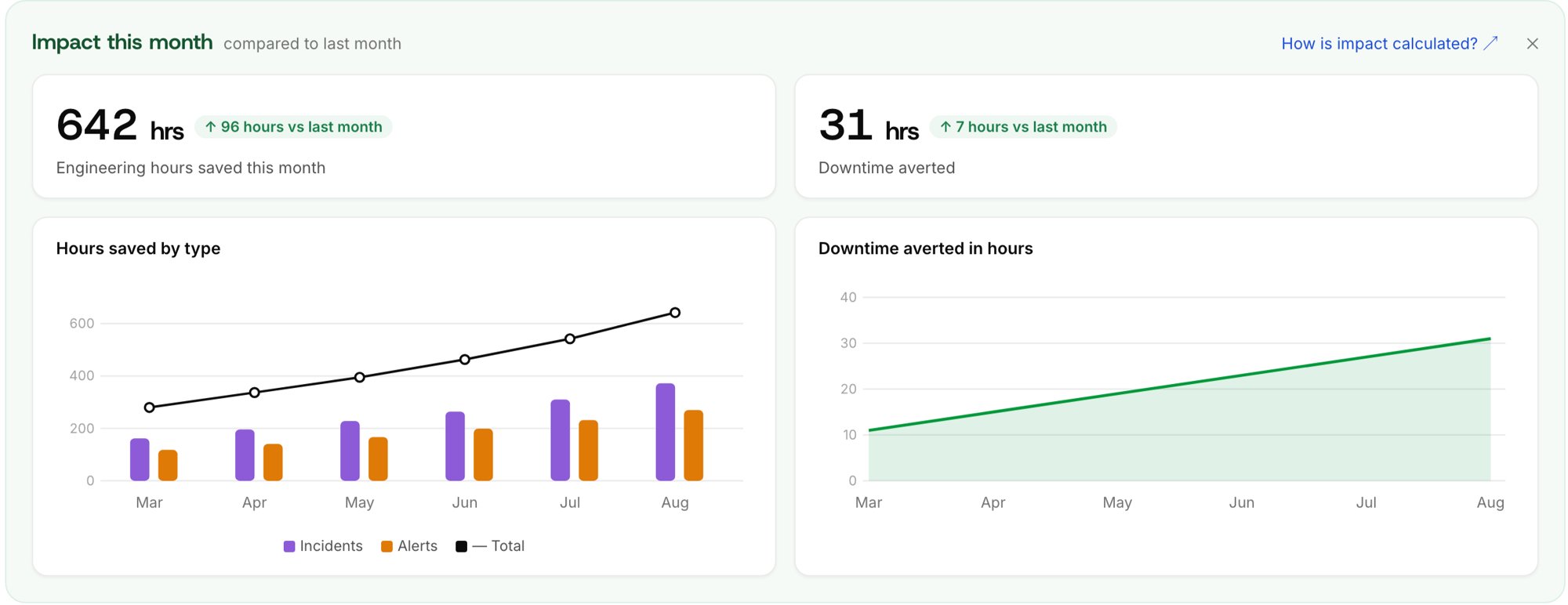
Worker Impact: engineering hours saved and downtime averted, split by Worker type and tracked over time.
- Engineering hours saved — the time your team didn’t spend doing what the Workers did. Broken out by Incident and Alert Workers, so you can see which is contributing what.
- Downtime averted — time your systems stayed up that they otherwise wouldn’t have. This is wall-clock time rather than engineering time, so it’s reported on its own and never added into hours saved.
How it’s calculated
Both figures are high-level estimates. Traversal counts what your Workers did, then applies a fixed set of assumptions to turn those counts into time. The assumptions are the same for every organization. For incidents, each responder — the people who posted in the channel shortly after the Worker joined — is credited with the share of their time Traversal removed. For alerts, each response the Worker posts is credited with the time a person didn’t spend reading the alert, deciding whether it mattered, and working out what caused it.
Downtime averted applies that same 10% to incident length. Month-over-month comparisons use the same number of elapsed days, so on the 3rd you’re seeing three days against the first three days of the month before.